
FIELD SERVICE PLATFORM
The route, the readings, the invoice. One login.
The job management software a recurring-service crew runs on: readings, routing, quotes, and dispatch in one system, one login, instead of a pile of separate apps. Keep the tools you already run and switch when you are ready. Included with every Command Center tier, and not charged per seat. Works for HVAC, pest control, cleaning, landscaping, and pool service alike.
See it in action
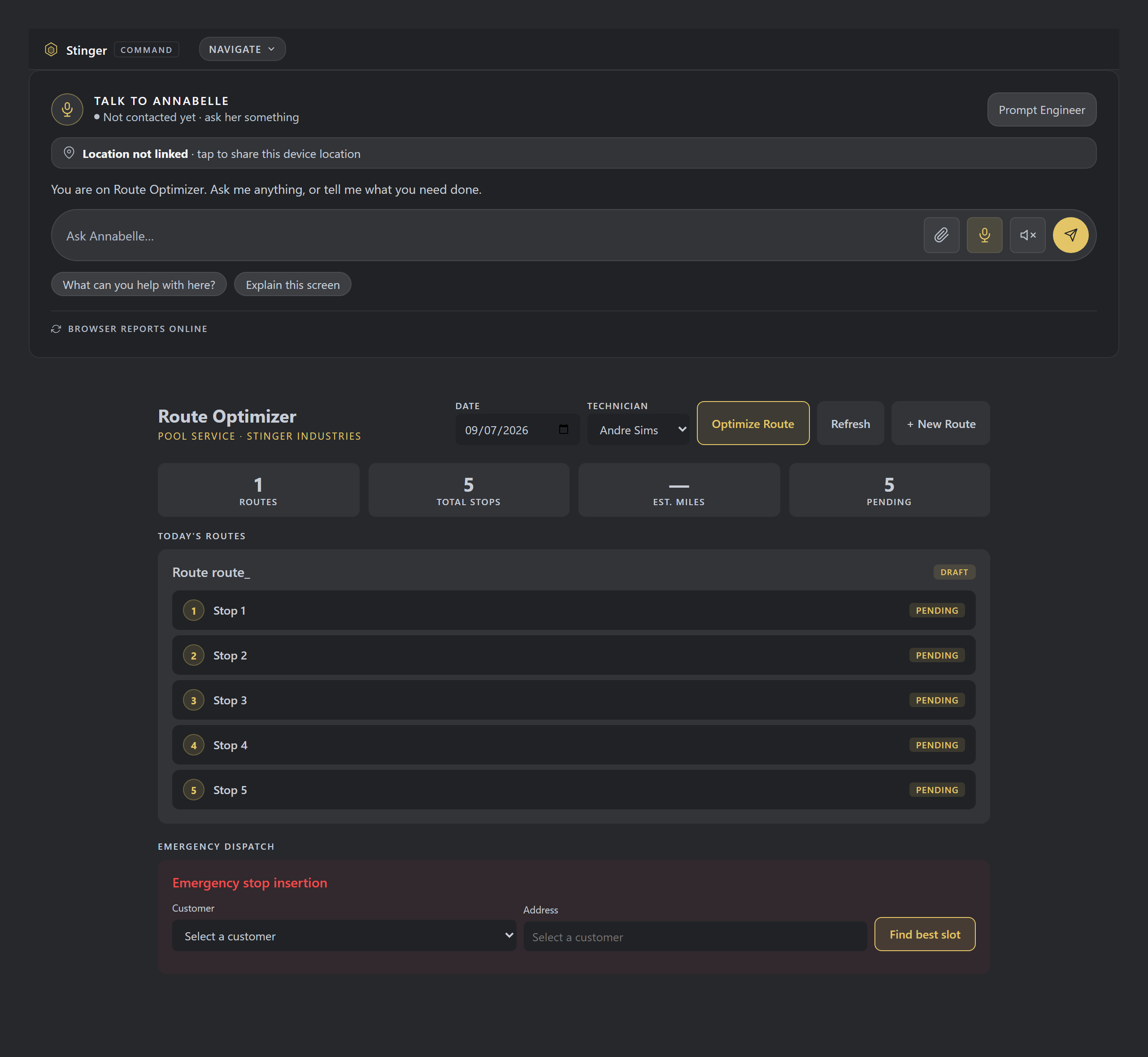
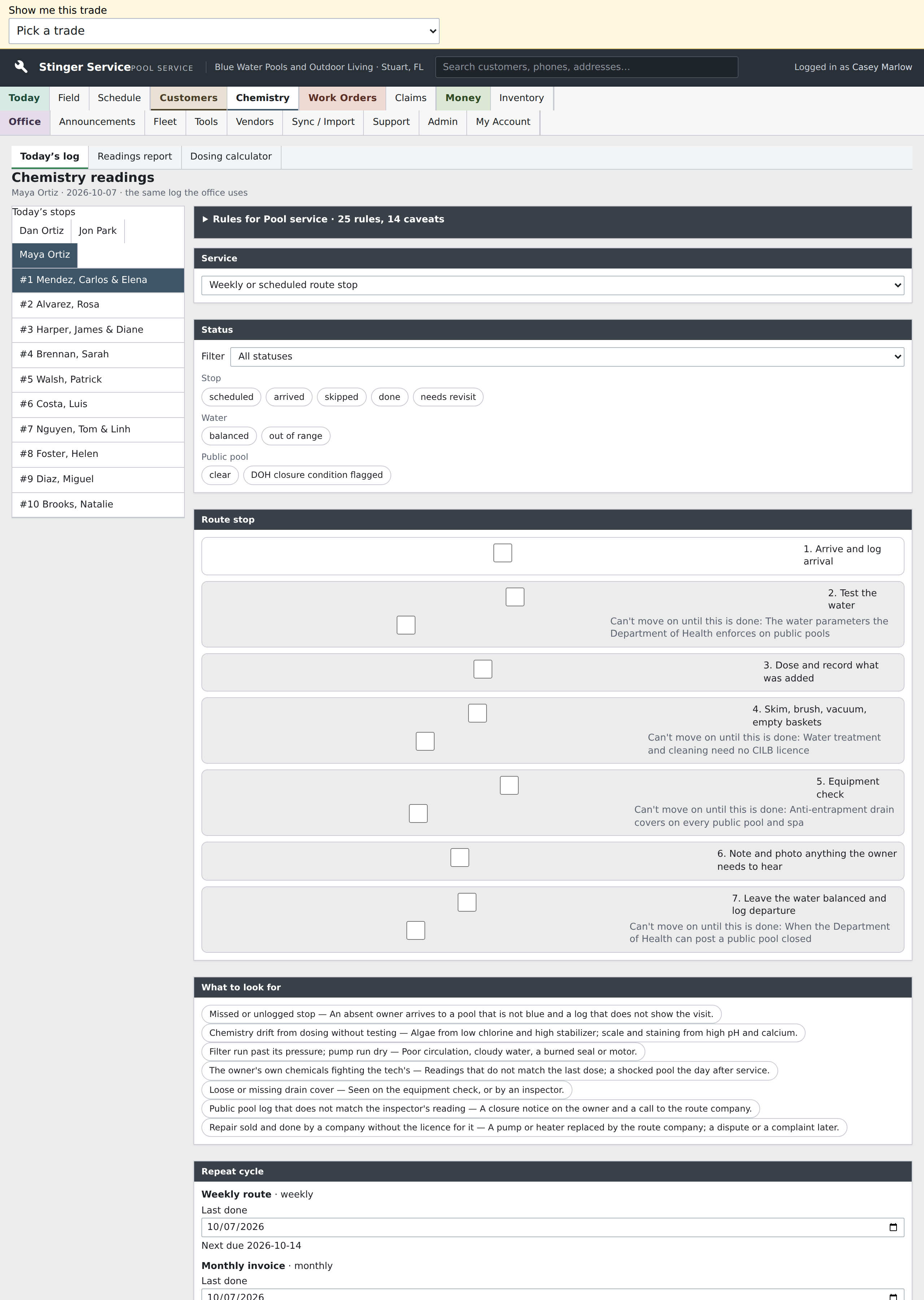
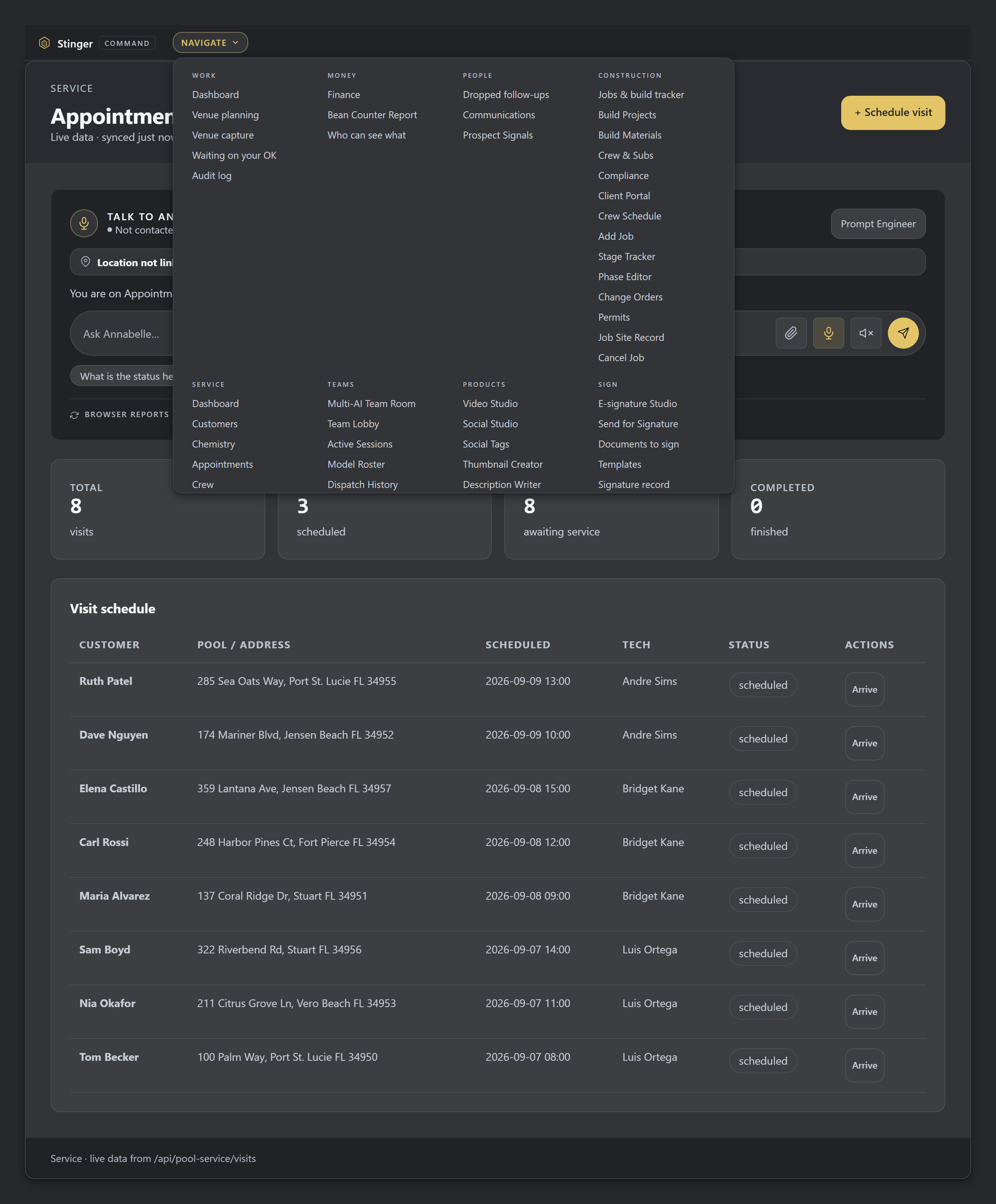
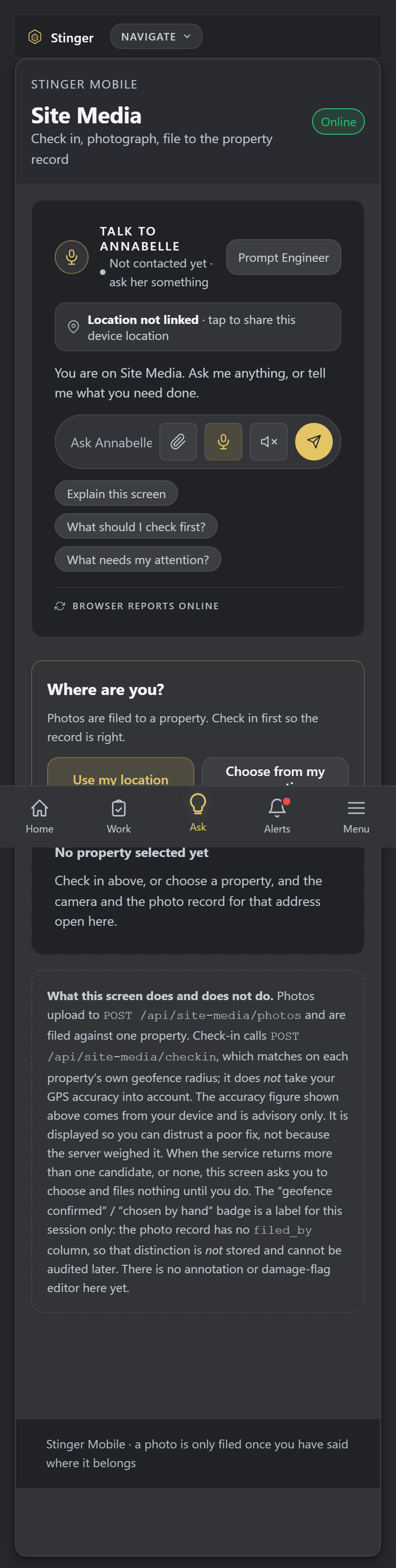

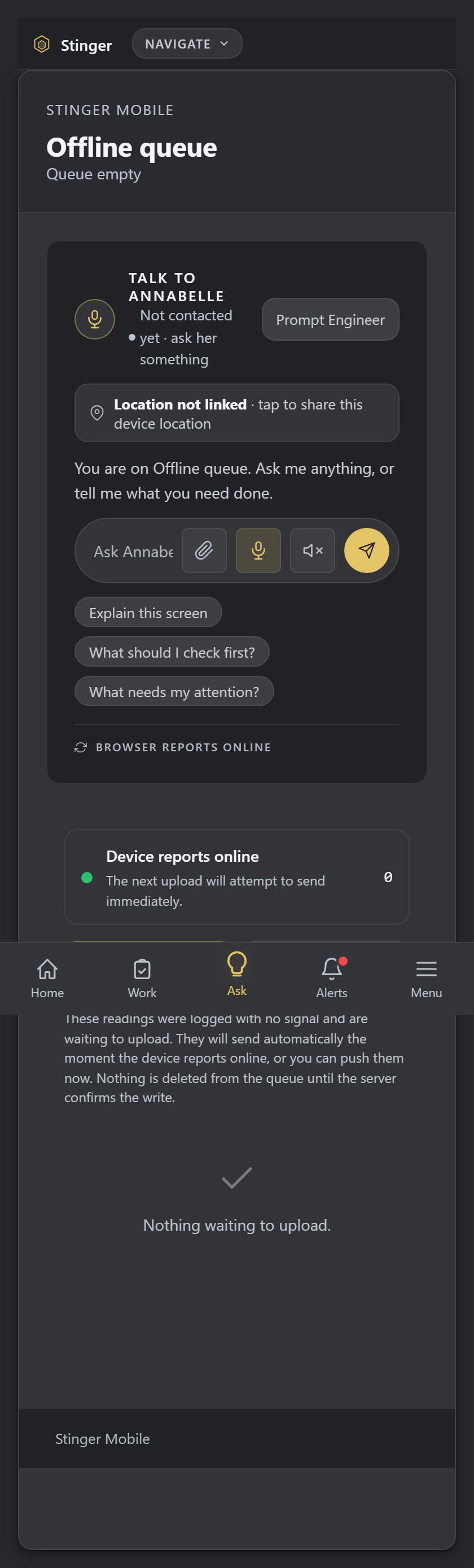
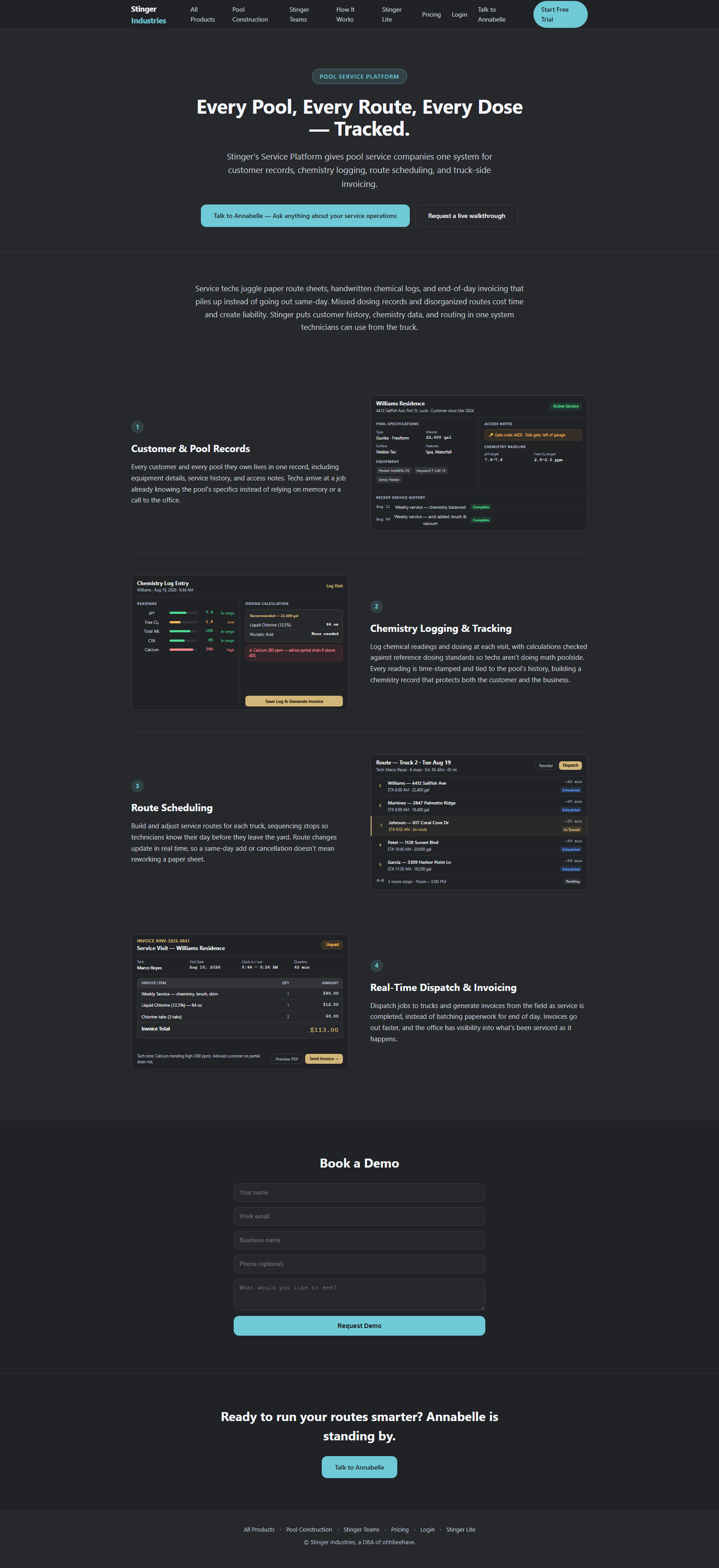
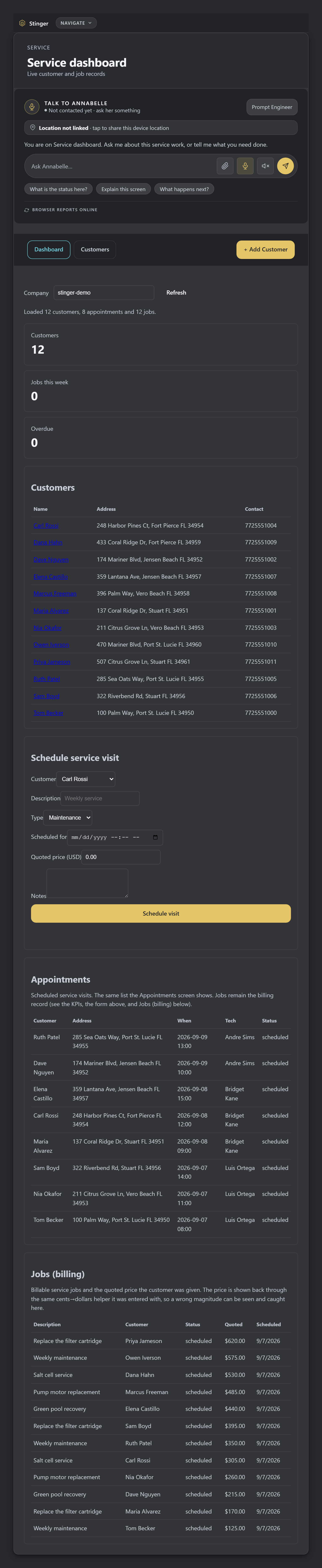
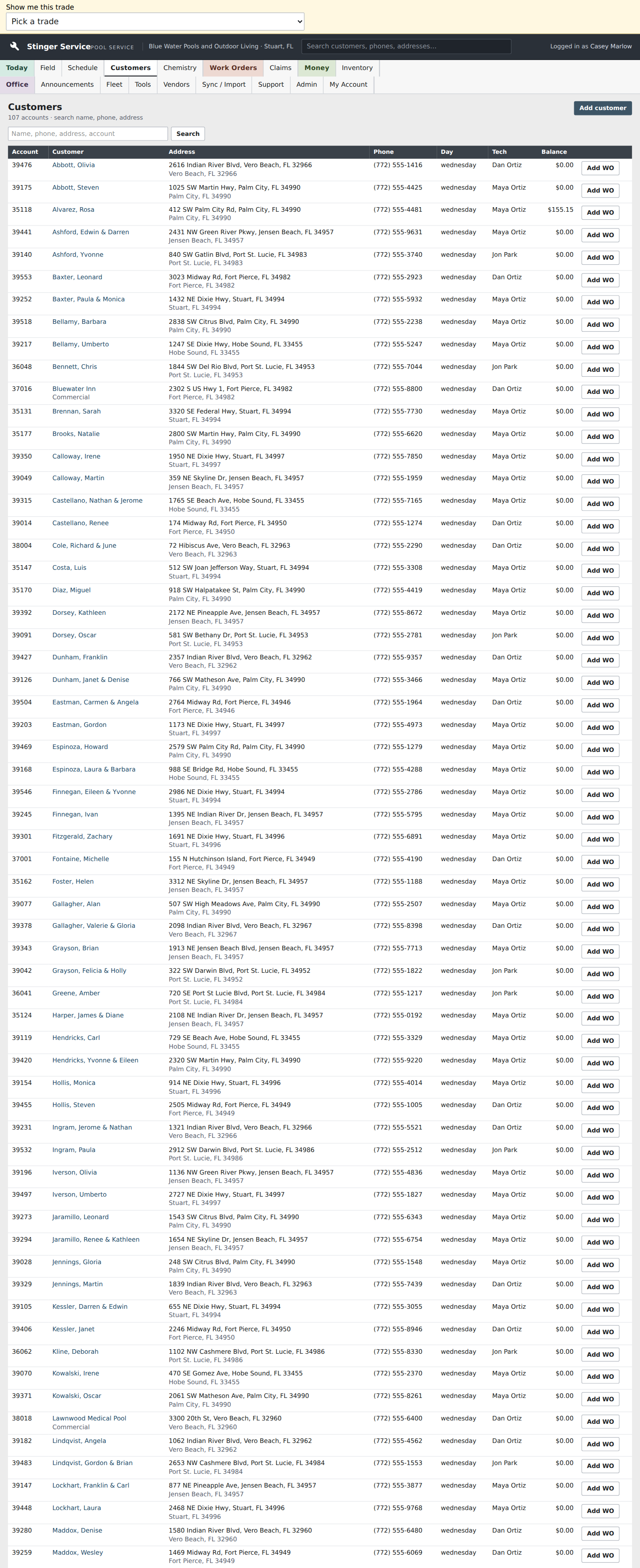
The Service Platform view: routes, chemistry and invoicing. This overview introduces the service workflow before opening the working route or visit screens; it is a platform overview rather than a completed visit.
Inside Command Center
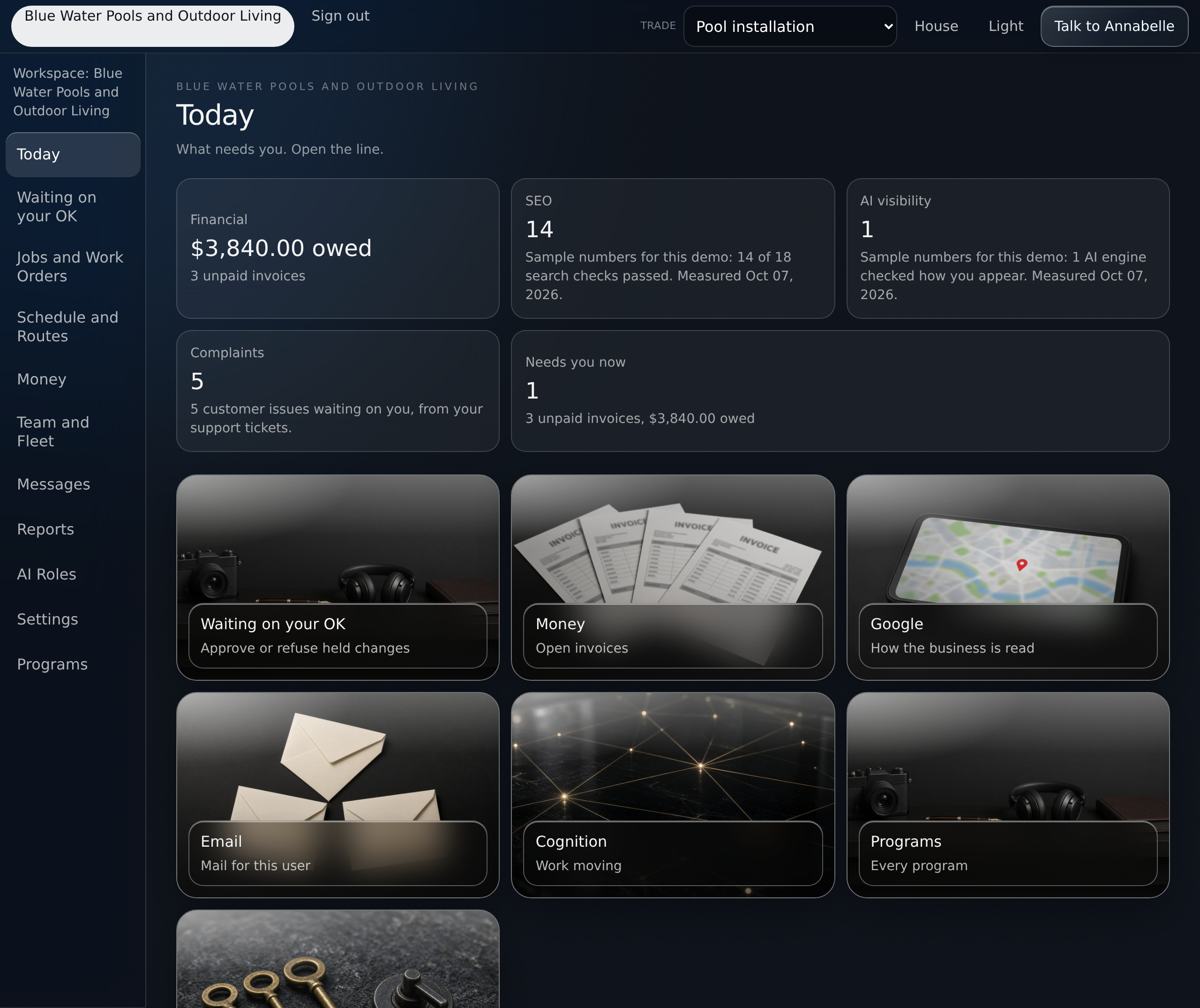
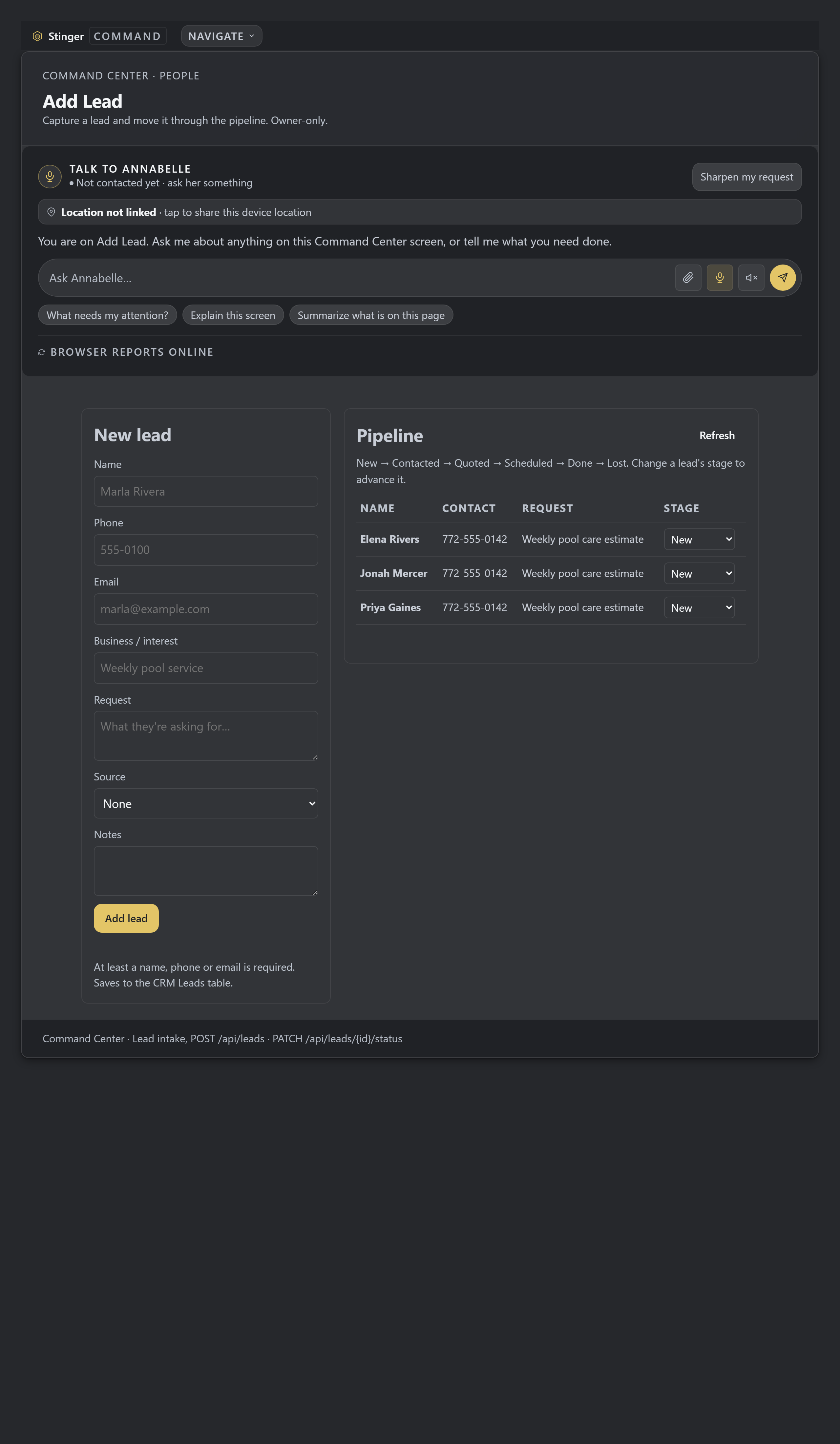
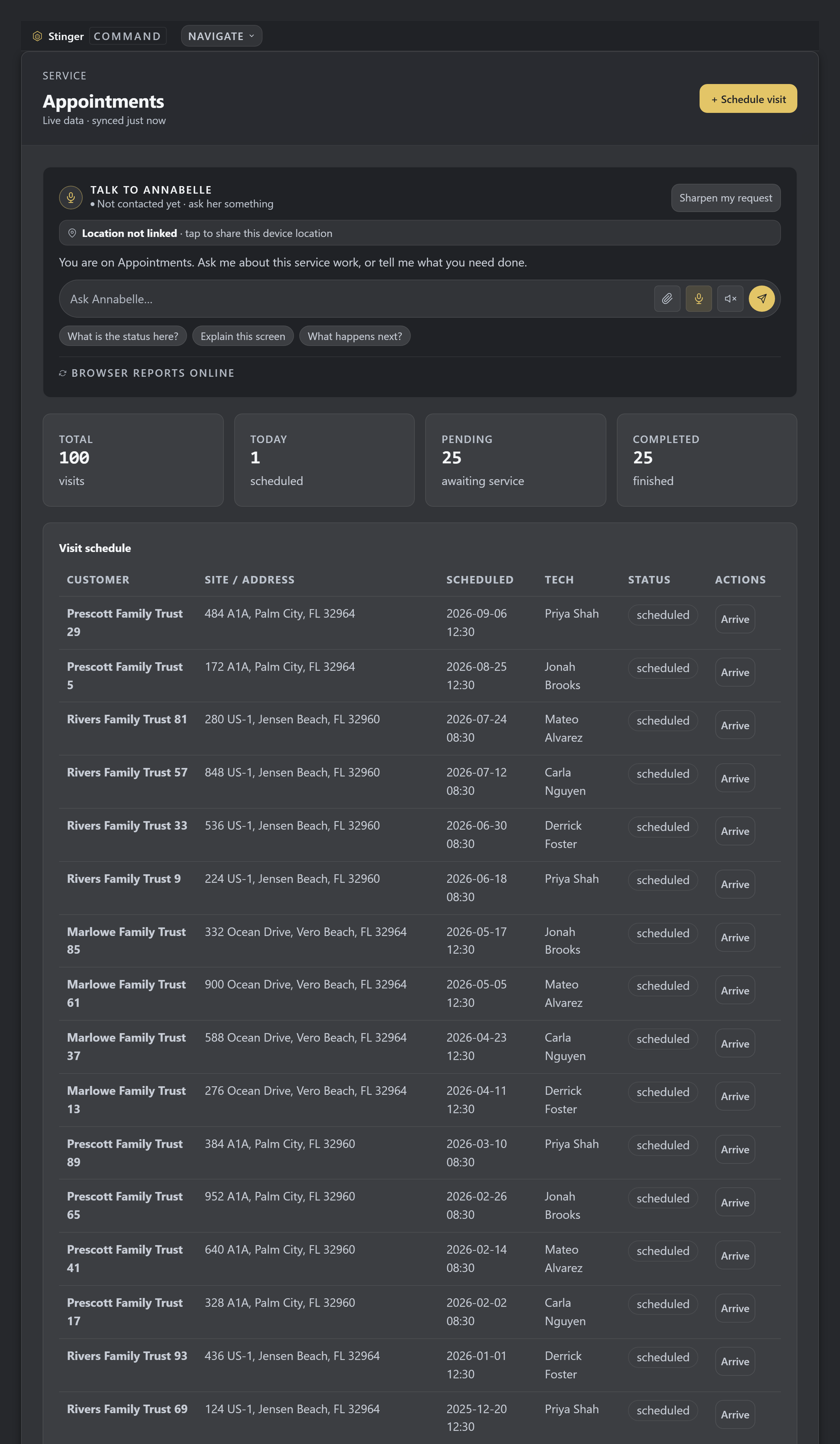
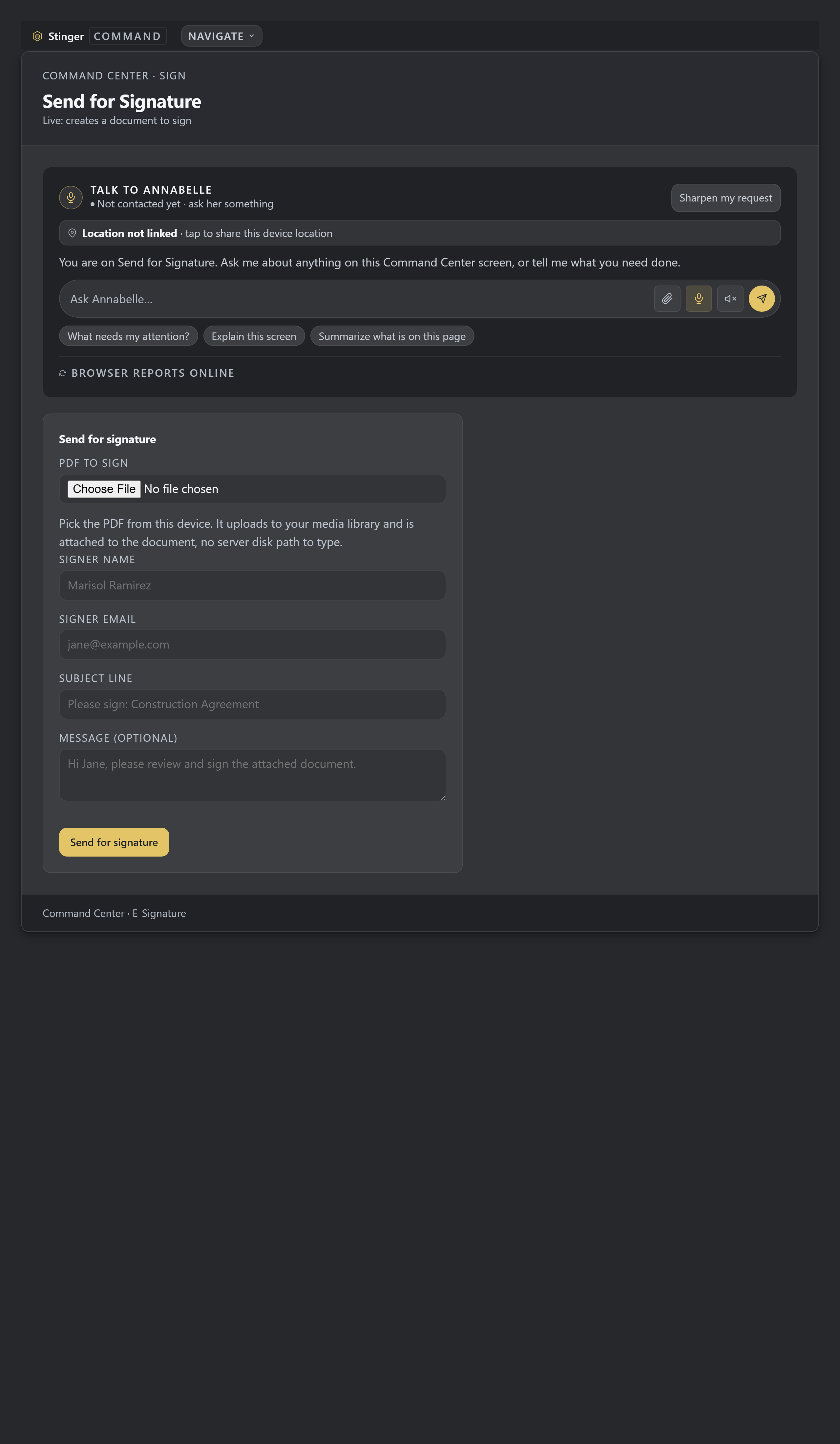
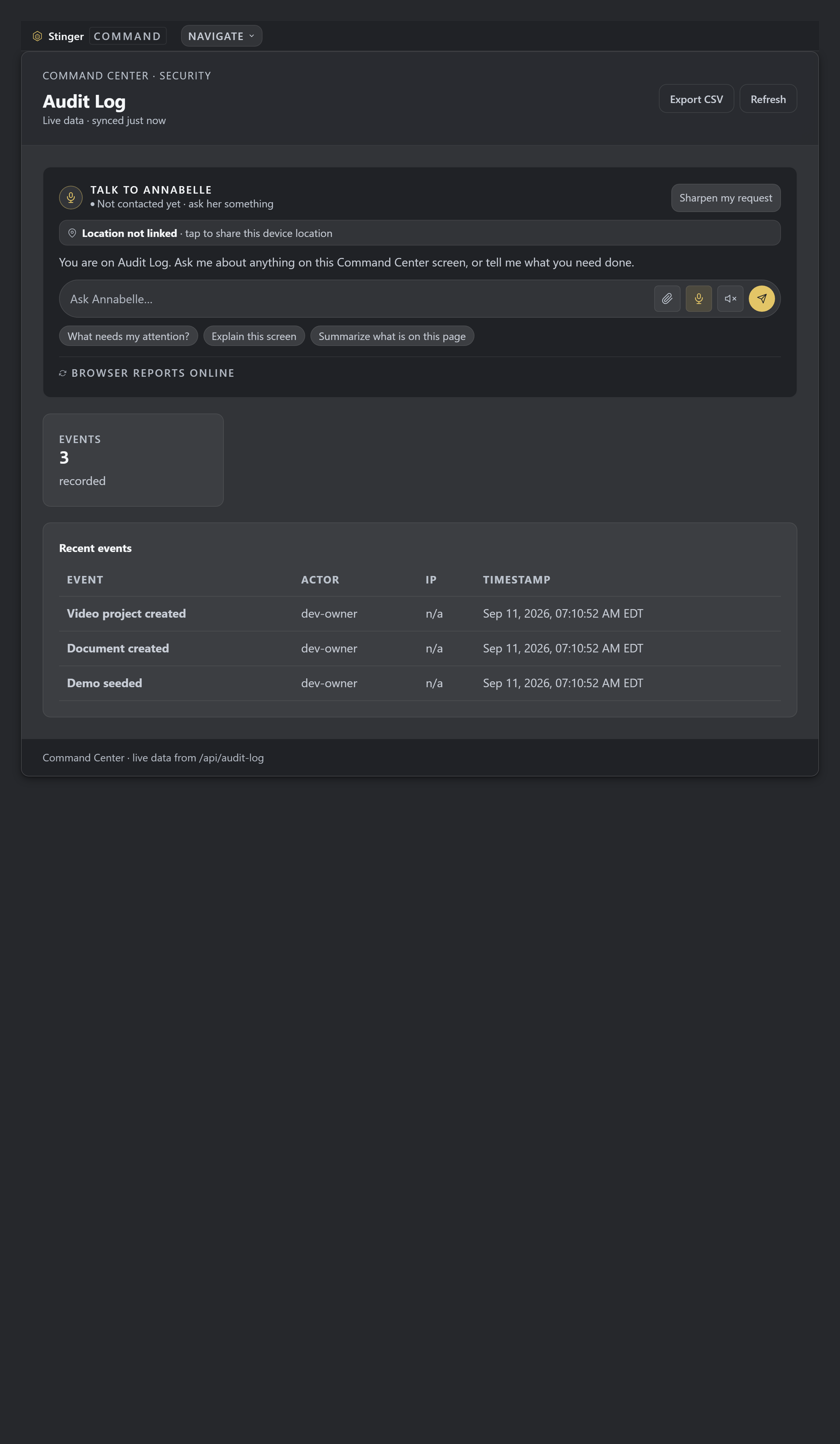
The Route
How does route planning keep every stop accounted for?
Customers & Properties
Full customer, property, job, and visit records, tied together.
Route Planning
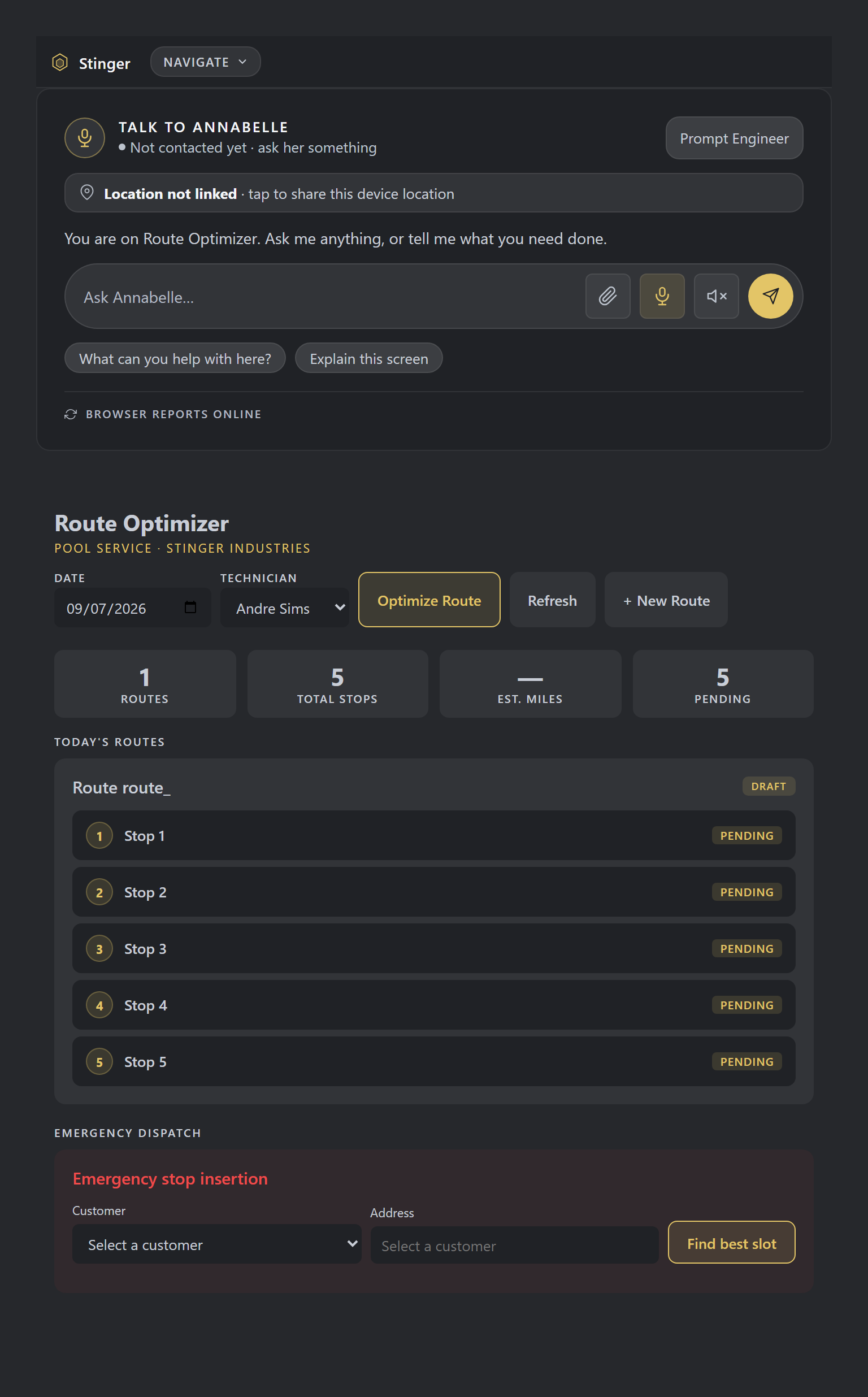
Route optimization plus emergency dispatch when a call can't wait.
Live Call Assist
Annabelle answers the business line when the office can't, books the visit, and never quotes or commits without your confirmation. Included with every Command Center tier, not charged per seat.
Shortest-Route Scheduling
Plans the shortest driving order across the day's stops.
Seasonal Visits
Multi-stage seasonal visit plans that adjust as conditions change.
Geofence Ambiguity
When a tech checks in near two adjacent sites forty feet apart, it flags the ambiguity instead of guessing which one. A wrong guess logs the visit against the wrong customer's property.
The Readings
How do field readings turn into an on-site calculation?
Field Readings
Log readings in the field, get a calculation on the spot. Pool chemistry dosing is one example.
Certifications Tracking
Technician certifications tracked so nobody's on a job unqualified.
Supervisor Spot-Checks
Built-in quality control on technician work, not just customer complaints.
The Paperwork
What happens to quotes, pricing, and reporting after the visit?
Versioned Quotes
Every quote revision kept, so nothing gets lost in a text thread.
Trade Pricing Options
Pricing structures built for the trade, from pool service to pest and HVAC, not bolted on from a generic tool.
Admin Financial Reports
Owner-level reporting across the whole route business.
Limited-Connectivity Support
The mobile app is built to keep working with limited connectivity; behavior varies by device.
GPS on the record
Where was each stop logged?
Every crew login and stop is GPS-stamped, job-site photos carry a geofence check, and the day's route and dosing sit on the same screen. The GPS stamp stays on the site record, so where a stop was logged travels with it.
GPS-stamped site records

Site survey and layout
Measure the site, mark the obstacles, place the plan.
Measure the site, mark the obstacles, and the layout engine places the plan; a geofence is set around the job. The same site survey and layout, home on Venue is available on the job. For aerial site capture, type an address and the aerial arrives already scaled, or paste a Google Maps screenshot or drop a file, then draw the usable area and the things that cannot be built on, and nothing is uploaded until you save; satellite imagery can be a season out of date, so anything the photo cannot confirm still needs the tape on site.
Site survey and layout
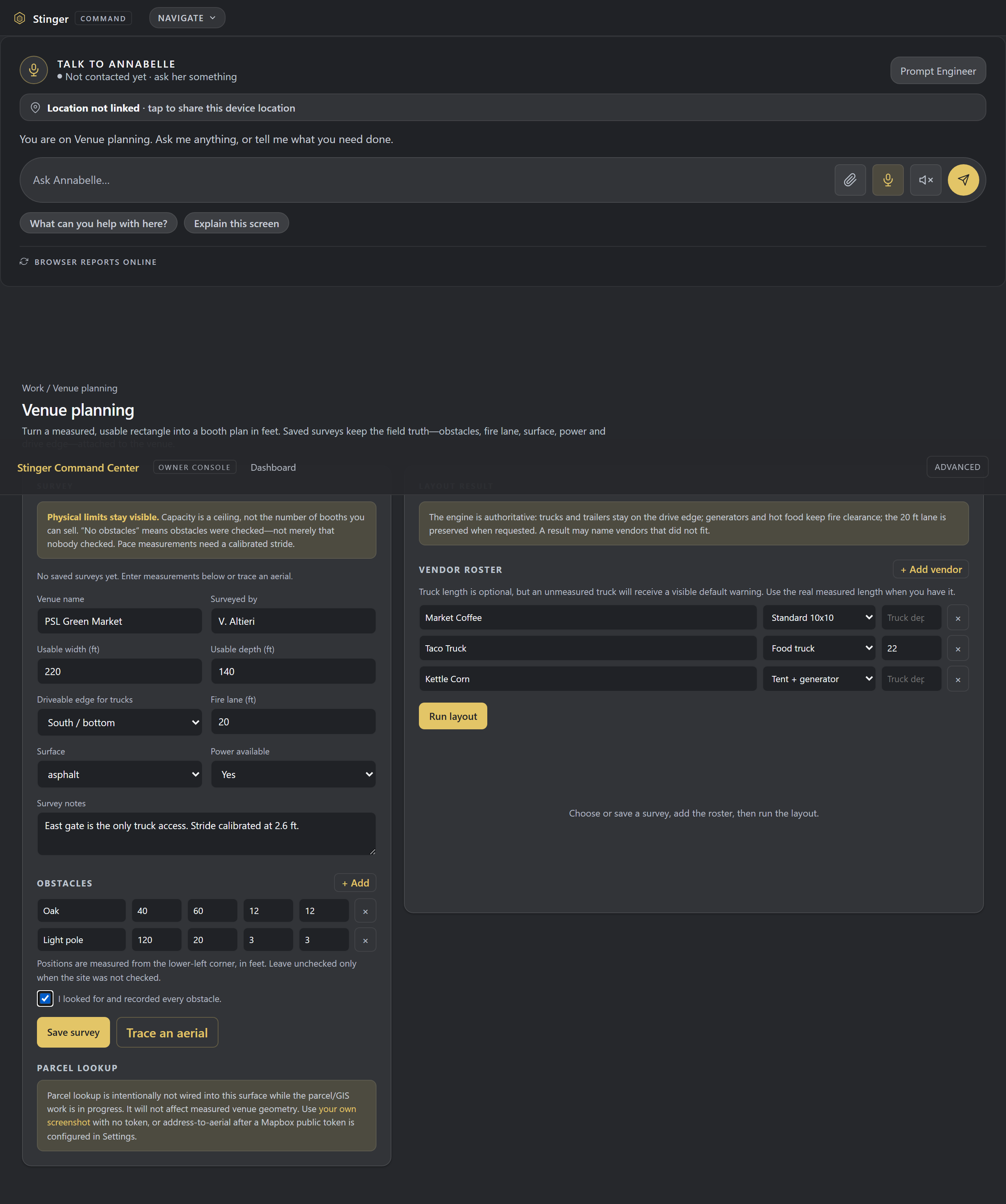
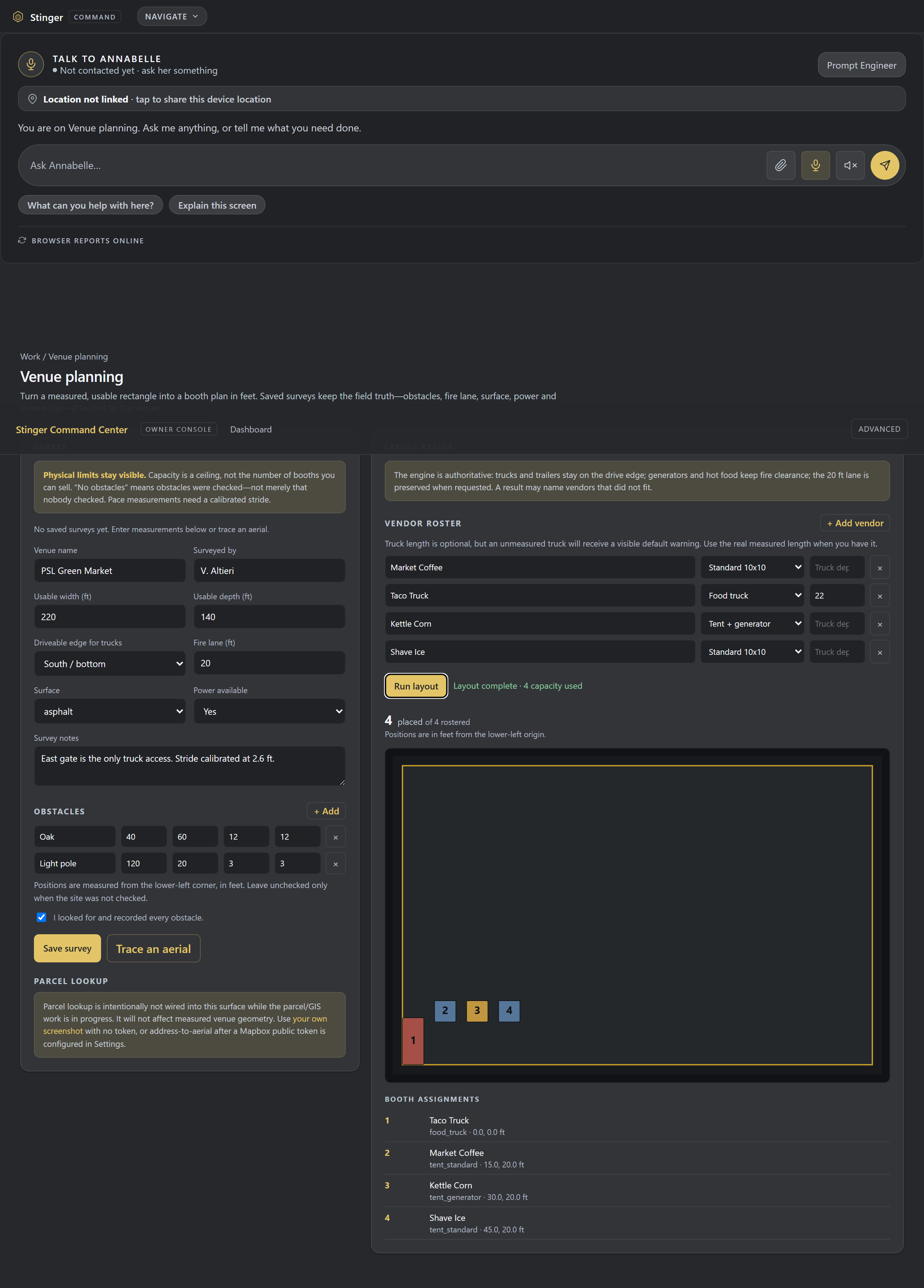
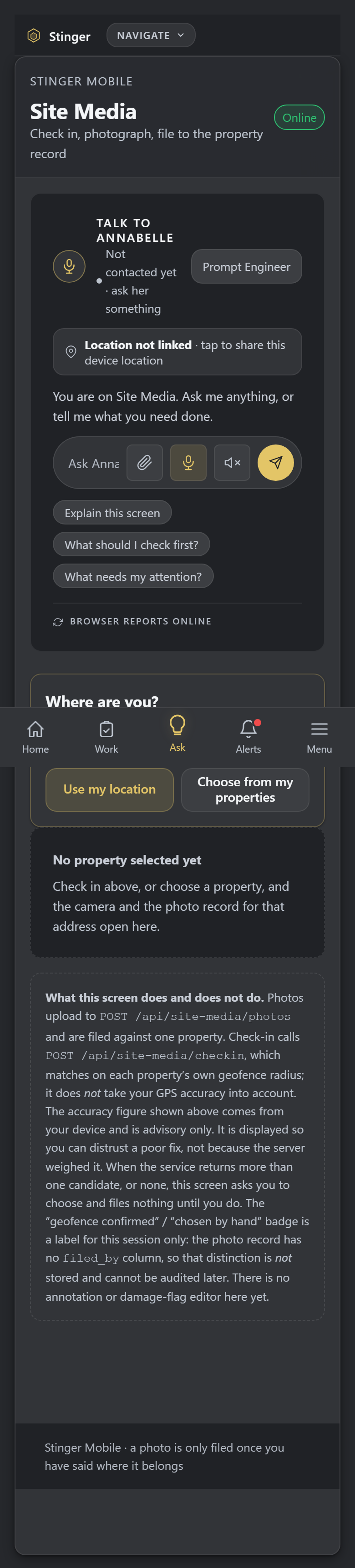
Photo Markup
Mark up the photo, on the spot.
Draw an arrow or a callout right on the photo, so the customer or the office sees exactly what a tech found. The original photo is never touched: markup is stored separately and drawn on top at view time, so the unmarked photo is always there.
Scheduling & work orders
Reorder the day, close a work order, apply a payment.
Reorder, rebuild and reassign
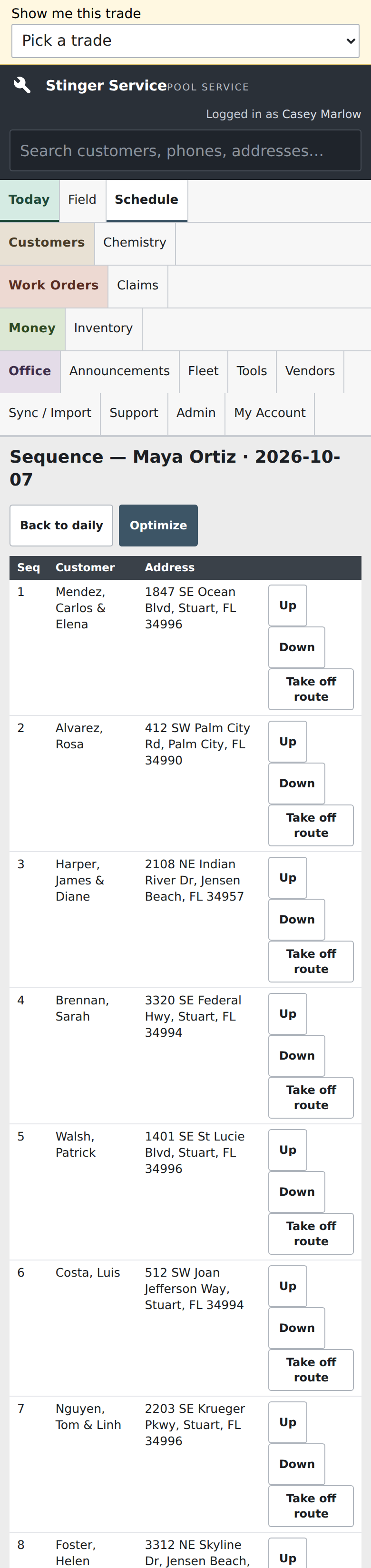
See the day or month, reorder stops, rebuild a recurring schedule and hand stops or work orders to another technician.
A completion gate on every stop
A stop cannot be completed until its required readings, checkpoints and photos are in.
Work orders close into an invoice
Close a work order into an invoice. The tax line uses one fixed rate for now, so check it for your area.
Apply a payment your way
Record a payment and apply it to the invoices you choose or the oldest first; this records the payment and does not charge a card.
Inventory & equipment
Stock, vendors and every customer's equipment.
Stock, pick lists and vendors
Adjust truck and shop stock, build a pick list for the route, and keep vendors.
Equipment records per customer
Keep each customer's equipment, serial numbers, warranty and install history.
Vehicles and tools, inspected
Assign vehicles and tools and run inspection checklists with photos and mileage.
Photos, field sync & chemistry
Proof you can share, entries that queue, readings that back up dosing.
Shareable proof photos
Share a proof photo by link, add comments, and revoke the link; deleting or changing one needs a reason.
Queued technician actions
Technician entries made with a weak signal queue and show pending, failed or synced; behavior varies by device.
Readings reports beside dosing
Readings reports and warnings sit next to dosing suggestions; these are aids for the technician, not a validated recommendation.
Communication & reporting
Announcements, tickets, documents and the numbers.
Announcements, claims and tickets
Post announcements, log claims, and answer support tickets from the same place.
Generated documents and reports
Generate documents and read service, technician and accounting reports.
Service-log email
Service emails are recorded and queued; a queued status is not a delivery receipt, and the mail connection must be set up.
Annabelle confirms before money moves
Annabelle names the customer and asks you to confirm before any payment, signature or email step starts.
Related
Works alongside the rest of the platform.
Service shares its job records with Construction and with the Stinger Proof module every visit photo lands in. See how they connect on the full platform overview, read the full comparison against the old way of running a route, or see the pool service geofence in detail.
On your phone and tablet


On your machine
Get it on your desk
One click from the browser
Install it as an app
Install it straight from the browser in one click. It gets its own icon on your desktop and taskbar, and opens in its own window.
- Chrome / Edge the Install icon in the address bar, or menu > Install (Apps > Install this site as an app).
- Safari (Mac) File > Add to Dock.
- Safari (iOS) Share > Add to Home Screen.
Android
Google Play
On Google Play, in review.
iOS
TestFlight
Via TestFlight, pending.
No app to install to see it, ask Vincent for the demo.